
Pricing products based on measurements is one of those things that sounds straightforward but can be confusing if you don’t have the logic laid out clearly. In practice, store owners know this instinctively when they try to charge per square foot, per meter, or even by weight. That’s exactly where a WooCommerce measurement price calculator becomes essential.
In fact, a WooCommerce measurement price calculator is not just because it does the math, but also because it lets customers enter their own desired measurements directly on the product page. As a result, they don’t have to calculate totals mentally, which often leads to abandoned carts or confused buyers.
When implemented correctly, a well-configured WooCommerce price calculator means your customers see pricing that makes sense in real time. Consequently, they understand what they are paying for, and you avoid rounding errors or mismatches between displayed prices and checkout totals.
More importantly, it’s not about showing another input field on the product page. Rather, it’s about making sure that the pricing logic reflects the actual way your store sells products, whether it’s by area, volume, length, or weight. When done properly, customers feel like they are interacting with a tailor-made store experience instead of a generic shopping cart.
Understanding Measurement-Based Pricing Rules
At its core, the idea behind measurement-based pricing is that each product can have its own unique formula that translates a measurement into a price. In this setup, A table of values, ranges, and units becomes the backbone of how a product is priced. Generally, this kind of pricing logic works best for products where the total cost depends on size, surface area, or physical quantity rather than just a fixed unit price.
Installing and Activating The Plugin
To get started with this process, the plugin must be installed and activated in your WooCommerce store. Once that’s complete, changing the product type to a measurement-based product unlocks the pricing logic where all the next steps happen. At that point, you will notice additional tabs inside your product settings area, and each of those tabs gives you control over how the measurement pricing works.
Choosing The Right Measurement Type
Next, the first real step in the measurement pricing setup is choosing the measurement type. Whether you want to measure in length, area, volume, or weight, you decide the units that your customers will see. Then, you define how input and output units relate to each other so the pricing formula knows what it’s calculating. Ultimately, choosing appropriate units makes a big difference because it ensures that customers enter numbers that reflect your policy instead of guessing what the store expects.
Building The Pricing Table
Once the base measurement settings are in place, the next part is building the pricing table. At this stage, you define ranges and associate a price per unit with each range. For example, a pricing table might allow a lower cost for larger measurements or different sale pricing for certain segments. Most importantly, the pricing table is what actually powers the WooCommerce measurement price calculator because it dictates how the raw number entered by the customer gets translated into a cost they see and eventually pay.
Setting Minimum and Maximum Purchase Limits
Finally, another important part of measurement-based pricing is defining minimum and maximum purchase values. For instance, you should set a reasonable minimum to avoid customers trying to buy quantities that are too small to be profitable. At the same time, define a maximum where appropriate so that orders remain manageable and within your store’s operational logic. Otherwise, without these limits, shoppers might order amounts that don’t fit your business model, resulting in confusion or manual order adjustments that take time.
How to Install the WooCommerce Measurement Price Calculator
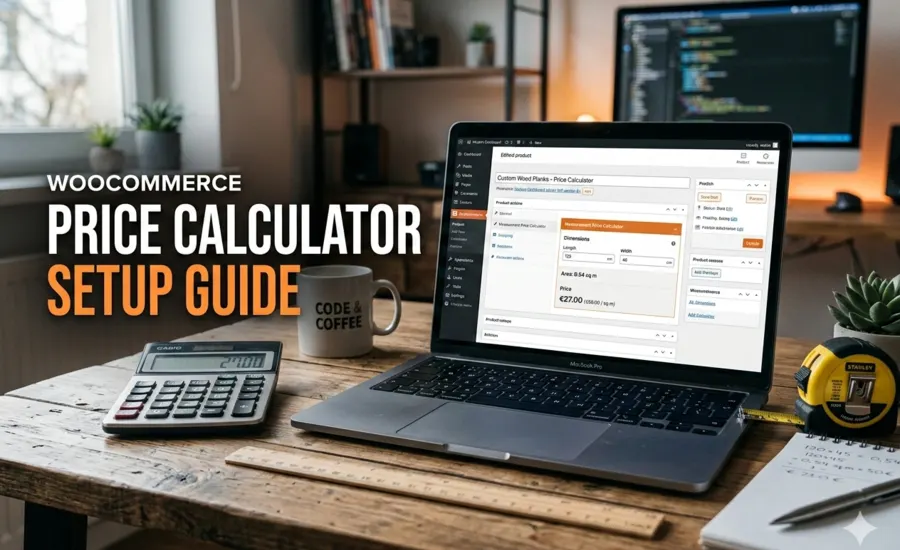
Before you can do any of the above, you need the plugin installed in your store, which is thankfully a pretty straightforward process. If you have already purchased it from WooCommerce.com, you can use the built-in “Add to store” functionality, which reduces manual steps and keeps the installation neat:
- Log in to your WooCommerce.com account
- Navigate to My Subscriptions
- Find the measurement price calculator plugin
- Click the Add to store button
- Follow the on-screen prompts
WooCommerce will automatically install and activate the plugin, so you don’t have to worry about zip file uploads or FTP steps. Once installation is complete, you can immediately start configuring products with measurement-based pricing rules.
Configuring Products with Measurement Pricing
After activation, navigate to:
- WooCommerce
- Products
- Edit the product you want to use measurement pricing on
Inside the product editor, change the product type from Simple Product to Measurement. When you do this, additional tabs appear below the product data, and this is where all the formula-based pricing logic is controlled:
Measurement Settings
This lets you:
- Choose input and output units
- Display price per unit for transparency
- Set custom labels to make the user interface friendly
This section helps customers understand what each field means and what they are expected to enter. When the pricing label and units are clear, there is less guesswork and more confidence while shopping.
Pricing Table
The pricing table is where the real magic happens. Here you define:
- A range of measurement values
- The price per unit for each range
- Optional sale prices per unit
If the product does not fall into a defined range, the system gracefully falls back to a minimum price so customers do not end up seeing errors. This makes your store more forgiving and robust, especially for customers unfamiliar with measurement logic.
Min / Max Quantity Setup
This helps you:
- Set minimum measurement values that customers must order
- Set maximum measurement thresholds
- Avoid orders that are too small or impractically large
This control helps especially when you sell something like fabric, wood panels, or tiles, where customers might accidentally enter unrealistic quantities.
Top 5 Picks for WooCommerce Price Calculator Plugins
Below is a clearer breakdown of popular measurement-based pricing plugins, with features listed as bullet points so it is easier to compare what each one actually does inside a WooCommerce store.
1. Extendons – Measurement Price & Cost Calculator
A feature-rich option built for stores that rely heavily on measurement logic and pricing accuracy.
- Sell products based on length, area, volume, weight, and other measurement types
- Allow customers to enter custom measurements directly on the product page
- Set input units and output units separately for better pricing control
- Display price per unit clearly on the frontend
- Create pricing tables with measurement ranges and different price-per-unit values
- Define the sale price per unit alongside regular pricing
- Apply minimum and maximum quantity rules
- Set a minimum product price when measurements fall outside defined ranges
- Add custom pricing labels and field labels for clarity
- Works smoothly within standard WooCommerce product data settings
This option fits stores selling flooring, fabric, tiles, liquids, cables, or any product where measurement accuracy directly affects revenue.
2. WooCommerce – Measurement Price Calculator (Official)
The official WooCommerce solution is designed for reliable, core-compatible measurement pricing.
- Supports pricing based on area, volume, length, and weight
- Calculates price automatically from customer-entered measurements
- Allows minimum order quantity configuration
- Uses formula-based pricing logic tied to product measurements
- Fully integrated with WooCommerce core
- Backed by official WooCommerce support and updates
Best suited for stores that want stable measurement pricing without heavy customization.
3. WooCommerce.com – Product Add-Ons & Measurement Price Calculator Bundle
Useful when measurement pricing needs to work alongside paid customization options.
- Combine measurement-based pricing with product add-ons
- Charge extra for services, finishes, or custom options
- Apply pricing logic based on both size and selected add-ons
- Supports customer input fields for custom measurements
- Ideal for made-to-order or customized products
This setup works well when final pricing depends on more than just size.
4. WPClever – WPC Measurement Price Calculator for WooCommerce
A flexible alternative focused on formula-driven pricing logic.
- Supports multiple measurement units and dimensions
- Enables formula-based pricing calculations
- Works with multi-dimensional products
- Allows custom unit handling logic
- Suitable for stores needing non-standard measurement calculations
This option is often chosen by stores with more technical pricing requirements.
5. YITH – YITH WooCommerce Measurement Price Calculator
A simpler, user-friendly WooCommerce measurement price calculator plugin for basic measurement pricing needs.
- Supports common measurement types
- Allows customers to input dimensions on product pages
- Clean and easy-to-use interface
- Works well for straightforward measurement pricing
- Minimal setup compared to advanced pricing tools
A good choice when measurement pricing is needed without complex rules or formulas.
Overall, each of these plugins serves a slightly different purpose. If your store depends on detailed measurement rules, pricing ranges, and unit control, a more advanced solution makes sense. For simpler pricing scenarios, lighter tools still cover the basics without adding unnecessary complexity.
Tips for Better Measurement-Based Pricing
Getting pricing right isn’t only about plugging numbers into a table. Instead, it requires careful planning and clarity. Here are some points that make the whole WooCommerce measurement price calculator setup work better and reduce customer confusion:
- Use clear labels for units, so customers know what they’re entering
- Display pricing per unit to avoid surprises at checkout
- Test edge cases like values outside your defined ranges
- Use minimum and maximum limits to prevent unrealistic orders
Ultimately, clarity in measurement pricing means fewer support tickets, fewer abandoned carts, and more confident customers.
Why Measurement Pricing Improves Store Performance
When customers see real-time calculated pricing based on the exact amount they want, rather than a one-size-fits-all cost, they tend to trust your store more. Moreover, it reduces the mental calculation they have to do and prevents last-minute surprises at checkout, which, in turn, leads to better conversions.
In addition, using a WooCommerce measurement price calculator plugin translates real-life costs into a shopping experience that feels reliable and tailored. Ultimately, when price logic reflects how products are really sold, you don’t just sell products, you sell confidence.